

iPhone
How to Replace an iPhone Battery
Difficulty: Moderate
Time: 20–40 min Our repairs: 90-day warranty
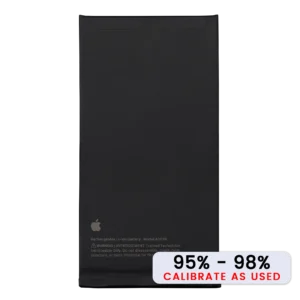
If your iPhone dies by mid-afternoon or shows degraded battery health, a fresh battery brings it back to life. This guide walks through opening the phone, safely removing the old lithium cell with the pull-tabs, and fitting a new high-grade battery — with the safety steps that matter around a lithium cell.
Before you start:
- Never puncture or bend a lithium battery — it can catch fire.
- Disconnect the battery connector before removing the cell.
- Don't reuse a swollen battery; recycle it properly.
What you'll need
- The replacement partshop parts — for your exact model
- Heavy-Duty Suction Cupwe stock it
- Opening Picks (6-pack)we stock it
- Precision Spudger & Opening Toolwe stock it
- Precision Driver Kitwe stock it
- iOpener Heat Kitwe stock it
- Shop all repair tools →
Choosing your part: Use a Genuine OEM or high-grade battery with the correct capacity — cheap cells lose capacity fast and can swell. Avoid no-name batteries.
Step-by-step
- 1 Power down & openTurn the device off, remove the screws, and open the display as in a screen repair (heat + suction + picks).
- 2 Disconnect the batteryRemove the connector bracket and unplug the battery before touching anything else.
- 3 Release the adhesiveUse the pull-tabs if present (pull slowly and evenly), or apply gentle heat and pry the old cell out with a plastic tool — never a metal one against the cell.
- 4 Fit the new batterySeat the new battery, route and reconnect its flex, and apply fresh adhesive strips to hold it.
- 5 Reconnect & testReconnect the display, power on, and confirm the battery charges and reads a sane health figure before sealing.
- 6 Close upReapply frame adhesive, close the display, and reinstall the screws.
Not comfortable doing it yourself? We've got you. Mail it in from anywhere in the US, or book our New Haven shop (appointment preferred — call or text ahead). Most repairs are done same-day with a 90-day warranty.
Get a repair quote Mail-in repair