

MacBook
How to Replace a MacBook Battery
Difficulty: Moderate–Hard
Time: 40–75 min Our repairs: 90-day warranty
A MacBook that won’t hold a charge or shows ‘Service Recommended’ usually needs a new battery. This guide covers removing the bottom case, safely disconnecting and freeing the (often glued-in) cells, and fitting a fresh battery rated for your exact model — with the adhesive-safety steps that keep it safe.
Before you start:
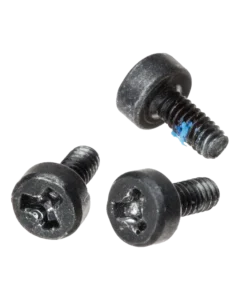
- Pentalobe P5 screws hold the bottom case; tri-wing/Torx inside.
- Disconnect the battery from the logic board before removing it.
- Many MacBook batteries are glued in — use adhesive remover, never pry a cell with metal.
What you'll need
- The replacement partshop parts — for your exact model
- Precision Driver Kitwe stock it
- Precision Spudger & Opening Toolwe stock it
- ESD Tweezerswe stock it
- Opening Picks (6-pack)we stock it
- Shop all repair tools →
Choosing your part: Use a genuine or high-grade battery rated for your exact MacBook model and year. Glued-in cells should be removed with proper adhesive remover — never pry a cell with a metal tool.
Step-by-step
- 1 Remove the bottom casePower off and unplug, remove the Pentalobe screws around the edge, and lift off the bottom case.
- 2 Disconnect the batteryPeel back any tape and disconnect the battery connector from the logic board before anything else.
- 3 Release the adhesiveUse battery adhesive remover (or the pull-tabs) to free the cells. Never pry a glued cell with a metal tool.
- 4 Fit the new batterySeat the new battery, reconnect its flex, and secure it with fresh adhesive.
- 5 Reconnect & testReconnect the battery, power on, and confirm it charges and reports correct health in System Settings.
- 6 Close upReinstall the bottom case and Pentalobe screws.
Not comfortable doing it yourself? We've got you. Mail it in from anywhere in the US, or book our New Haven shop (appointment preferred — call or text ahead). Most repairs are done same-day with a 90-day warranty.
Get a repair quote Mail-in repair